Showing posts with label Analysis Services. Show all posts

Tuesday, April 07, 2015

Deploying SSAS databases

Deploy AS database to test environment with VS 2012

With Visual Studio 2012 and SQL Server Data Tools 11.1.50318.0

Project configuration Active Solution is set to Development.

From within Visual Studio, right-click on the SSAS project, Select ‘Deploy’ in the dropdown menu.

Deploy AS database to production with Deployment Wizard

Start Analysis Services deployment wizard

image

Welcome screen – Next

image

Database file

Browse to the bin folder of your VS2012 Analysis services project and look for the file with the asdatabase extension. Next

image

Installation target. Enter Server name and Database name as it should appear on that server. Next

image

Specify Options for partitions and roles. Next

image

Specify configuration Properties. Check ‘Retain configuration settings for existing objects’.

image

Select Processing Options. Default processing. Next.

image

Confirm deployment. Next.

Deployment is done.

Wednesday, January 14, 2015

Sort date names order in a matrix report based on SSAS Data Source


I created a report based on a simple SSAS cube with a fact table containing a value per day per division. The report has a year parameter and needs to show the sum per month in a pivot table, with 12 months in the columns and a row for each division.

The report is easy to generate with the report wizard, but it results in columns where months are sorted by name: April, August, December, February, …

image

Problem

The Report designer sorts the columns alphabetically by the name of the month.

Solution

The months are supplied by the SSAS MDX in correct order, it is the report definition that sorts the resulting columns alphabetically.

The solution is quite easy: remove the sort order from the Month Column Group.

image

in the Group properties of the Month column group, go to the Sorting options and remove the sort on the Month:

image

So that no sorting is set:

image

The report shows the months in chronological order:

image

Thursday, October 16, 2014

Error occurred while the attribute of the dimension from the database was being processed–snowflake dimension

Problem

While designing a new snowflake dimension in an Analysis services project, I received the following error message during deployment with Visual Studio of the project to the Analysis Server:

Errors in the OLAP storage engine: An error occurred while the 'Plant' attribute of the 'Device' dimension from the '<projectname>' database was being processed.

The snowflake dimension ‘Device’ is a combination of related tables: Country – Region – Plant – Device. The Dimension the same hierarchy as in the one-to-many relationship.

Each table is composed of a primary key Id column, a name column and various other properties. The snowflake dimension will be used for grouping and totalling production data, so that users can drill down from Country level to Regional, to Plant or to Device. The users do not know the Id values, they are shown the names.

The dimension attribute properties are setup to use the Id as Key, but to display the name and order the listed values by name, e.g. for Region

  • KeyColumns: Region.id
  • NameColumn: Region.Name
  • OrderBy: Name

After the initial design of this dimension I wanted to deploy to the server, so as to be able to test my design in the Dimension Browser. Then I received the abovementioned error message.

SOLUTION: look for NULL values in Foreign key column that refers to parent table

The error message was displayed in the Error List window in Visual Studio. The Output window shows some more information about the error.

Warning -2128674815 : Errors in the OLAP storage engine: The attribute key cannot be found when processing: Table: 'dbo_Region', Column: 'Id', Value: '0'. The attribute is 'Region'.

When I queried SQL database table Plant for foreign key RegionId with value 0, none were found. When I queried for foreign key field being NULL, I found one such record in the Plant table. This record happens to be the main office of the company and is there for other purposes, so it must not be selected.

  • Go to the Data Source View, right click on Plant table and select ‘Replace Table –> With New Named Query…
  • In the query designer add the condition WHERE RegionId IS NOT NULL
  • Save the query.
  • Deploy the project

The project will now deploy without any further error messages, unless you have other data to clean up.

Wednesday, October 15, 2014

Analysis services 2012: a connection cannot be made, ensure that the server is running

After the installation of a new SQL Server 2012 with Analysis Services, I found that I could reach the Analysis services database perfectly well when I was remotely logged in on the Server and connected with SSMS locally. When I tried to connect with SSMS from another computer  I received the error message:

A connection cannot be made. Ensure that the server is running. (Microsoft.AnalysisServices.AdomdClient)

On the internet some advice is given about this connection problem.On the server with Analysis Services 2012 the SQL Server Browser must be running under the LOCALSYSTEM account. On my Server the browser service was running under LOCALSERVICE. After I changed this I still could not connect remotely.

Another advice was to try to connect to the Analysis Service using <Servername>:2383, in order not use SQL Server Browser. But I still received the same error message.

Finally it dawned to me that the firewall was probably blocking this port. On the Server with Analysis Services 2012, open ‘Windows Firewall with Advanced Security’ and add a new inbound rule, for TCP port 2383, to allow the connection in the Domain. This rule is similar as the rule one must setup for SQL Server Service in port 1433.

open ‘Windows Firewall with Advanced Security’

Select Inbound Rules, In Actions, click on ‘New Rule…’

image

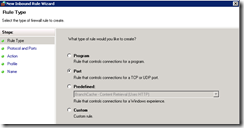
In the New Inbound Rule Wizard, Rule Type, select Port, click Next
image

In the Protocols and Ports, Select ‘TCP’, Specific local ports, type ‘2383’, click Next

image

In Action, Select ‘Allow the connection’, Next

image

In Profile, check only ‘Domain’ (because I only want to grant access from my corporate domain). Next

image

In Name, type the name: ‘Sql Server analysis service port’ (or some other name that allows you to recognize your inbound rule). Finish.

image

As soon as the Inbound rule is created, the connection from another computer to the analysis service will work.