Showing posts with label visual studio 2008. Show all posts

Thursday, February 13, 2014

Using WCF service in a Source Script Component with SSIS 2008

Problem

Given the URL of a WCF service that returns a set of entities as a List object, the list must be read by SSIS to update or insert into a SQL server database table.

Solution

  • The SSIS package will use a Source Script component in a Data Flow Task to use the WCF service.
  • The URL of the WCF is stored in a variable.The value of the variable can then be stored in a package configuration file, to ease deployment between development and production environment.
  • The Source Script Component in the Data Flow Task will use the URL variable as readonly variable to set the web service address in the code.
  • SOURCE: The WCF method is GetDeviceList with one argument, a specific code. The List returned by the WCF service is of type MyDevice with 3 fields:
    • Id: int32
    • Abbreviation: unicode string 50
    • Designation: unicode string 255
  • DESTINATION: the data will be stored in a SQL db table:
    CREATE TABLE [dbo].[Device](
        [DeviceId] [int] IDENTITY(1,1) NOT NULL,
        [ExternalId] [int] NOT NULL,
        [Name] [nvarchar](255) NULL,
        [ShortName] [nvarchar](50) NULL,
     CONSTRAINT [PK_dbo.Device] PRIMARY KEY CLUSTERED 
    (
        [DeviceId] ASC
    )WITH (PAD_INDEX  = OFF, STATISTICS_NORECOMPUTE  = OFF, IGNORE_DUP_KEY = OFF, ALLOW_ROW_LOCKS  = ON, ALLOW_PAGE_LOCKS  = ON) ON [PRIMARY]
    ) ON [PRIMARY]


  • Source to Destination mapping


    WCF list elementSQL table row
    IdExternalId
    DesignationName
    AbbreviationShortName

Step by step


  1. In VS 2008 add a new package to an Integration Services project.
  2. in the package create a new variable UrlWcf of type string and set it to the Url of the service in the development environment, i.e. http://localhost/SysAComm.svc
  3. Add a Data Flow Task to the package.
  4. In the Data Flow add a new Script Component.
  5. The ‘Select Script Component Type’ pops up. Select Source and click OK
    image
  6. Double-click the Script Component to edit it.
  7. In the editor dialog window under the Script tab, in the ReadOnlyVariables select User::UrlWcf
    image
  8. Click On the Inputs and Outputs to define the Output and columns. The Output 0 is renamed to OutputDevice and 3 output columns have been added:
    image
  9. Click on Script in the lefthand pane. Click on the ‘Edit script’ button to edit the code.

Add WCF service reference


  1. In the Project Explorer window, Edit the project properties, to change the Target Framework from 2.0 to 3.5.
    image
  2. Right-click on References and select ‘Add Reference'…’ to add the ‘System.ServiceModel’ reference.
  3. right-click on References and select ‘Add Service reference…’
    image
  4. In the ‘Add Service Reference’ dialog window, type the URL and click on the Go button. If the service url was spelled correctly, the service is displayed, enter the Service reference Name ‘SysAComm, then click on the ‘Advanced…’ button.
    image 
  5. Uncheck ‘Always generate message contracts’, Change the collection type: to System.Collections.Generic.List. click OK.
    image
  6. Click OK again to add the service reference.
  7. The new servicereference is shown in the Project Explorer, and the System.ServiceModel reference is automatically added to References.
     image

Edit the code in main.cs


  1. add using statements


    1. using System.ServiceModel and

    2. one for the web service reference (the SC_… depends on the projectname that is generated).

    3. using System.Collections.Generic; (to consume the List<> returned by the WCF service)

  2. In the ScriptMain class add a ChannelFactory and a SysAComm declaration


  3. using System.ServiceModel;
    using SC_6dd47e9530f147da8d878d53a1a62376.csproj.SysAComm;
     
    [Microsoft.SqlServer.Dts.Pipeline.SSISScriptComponentEntryPointAttribute]
    public class ScriptMain : UserComponent
    {
        ChannelFactory<ISysAComm> channelFactory;
        ISysAComm client;


  4. In the PreExecute code, create an instance of the ChannelFactory and client

    public override void PreExecute()
    {
        base.PreExecute();
        try
        {
            //create the binding
            var binding = new BasicHttpBinding(); 
            //configure the binding
            binding.Security.Mode = BasicHttpSecurityMode.None;
            binding.Security.Transport.ClientCredentialType = HttpClientCredentialType.None; 
            
            var endpointAddress = new EndpointAddress(this.Variables.UrlWcf);
            channelFactory = new ChannelFactory<ISysAComm>(binding, endpointAddress);
     
            //create the channel
            client = channelFactory.CreateChannel();
     
        }
        catch (Exception ex)
        {
            byte[] bt = null;
            this.Log(ex.Message, 0, bt);
        }
    }


  5. In the PostExecute method, add code to close the channel.


    public override void PostExecute()
    {
        base.PostExecute();
        try
        {
            //close the channel
            IClientChannel channel = (IClientChannel)client;
            channel.Close();
     
            //close the ChannelFactory
            channelFactory.Close();
        }
        catch (Exception ex)
        {
            byte[] bt = null;
            this.Log(ex.Message, 0, bt);
        }
    }


  6. Add the code to read the service and populate the script ouputbuffer in the CreateNewOutputRows method


    public override void CreateNewOutputRows()
    {
        try
        {
            List<MyDevice> my_devices = client.GetDeviceList("A123");
            foreach (MyDevice my_device in my_devices)
            { 
                OutputDeviceBuffer.AddRow();
                OutputDeviceBuffer.Abbreviation = my_device.Abbreviation;
                OutputDeviceBuffer.Id = my_device.Id;
                OutputDeviceBuffer.Designation = my_device.Designation;
            }
        }
        catch (Exception ex)
        {
            byte[] bt = null;
            this.Log(ex.Message, 0, bt);
        }
    }


Build and save all of the script. close the script window and save the Script component.


Use the output from the Script Component


The output from the script component is now ready for use, e.g. as input for a Slowly Changing Dimension
image


The final Data Flow looks like this
image


Conclusion


SSIS can be setup to handle WCF services that return List<T> objects in a Source script component.


I have created a blog about How to create and deploy a WCF service to be consumed by SSIS

Thursday, October 31, 2013

Reporting project Shared data source is losing its password

I have a Reporting Services project in BIDS 2008 R2 (or VS 2008 if you like). The project contains 4 different shared data sources. Those shared data sources were connecting to different database servers with database accounts and passwords. The project is under TFS source control. The project has been deployed to 2 different servers in a debug and release environment. Recently I received a new development system with a fresh installation of SQL 2008 R2 developer. With BIDS I connected to the TFS server and downloaded the most recent version of my reporting project. All project files had been checked in beforehand on the old development system. I had to check out and modify a report. When I wanted to preview the report in BIDS I noticed the error message that it could not connect to one of the four shared data sources. For deployment my project is setup to NOT overwrite shared data sources.

I presumed that the data source password was lost because it was not stored on this new system. So I checked out the data source opened it and edited the connection in the Shared Data Source properties. Indeed the password and login name where blank. I entered them, tested the connection and closed the properties dialog box by clicking OK. For the other 3 data sources I had to do the same: check out, edit property, reenter credentials and save.

However when I previewed the report I received the same error message, the data source could not connect. I went back to the data source properties and tested the connection: everything was OK. But the report preview still did not work. I saved everything in the project and closed the solution. Then reopened it, went to the shared data source properties and indeed the credentials were blank again.

I checked the file system, all 4 files where write enabled, but only 3 files had a modification time of my recent changes, while the data source with the blank credentials had the modification time of when I downloaded the file from TFS.

I stopped BIDS and deleted the rptproj.user file, restarted BIDS, but that did not help.

I tried running BIDS as administrator and save the credentials for that particular data source but that did not help either.

I checked out the complete solution, entered the credentials for the data source again, but that did not help either.

Since I had everything checked out, I decided to delete the data source and then create it again with the same name. This solution worked. The credentials where now stored each time I reopened the project, I could see the credentials stored in the data source properties and preview the report.

Tuesday, May 14, 2013

See What Other Users Have Checked Out in TFS

I found the answer on Adam Prescott's blog

Prerequisites

Visual Studio Team Foundation Power Tools – With Visual Studio 2010 – in the Tools menu, select Extension manager. Download the Power tools and install (close VS 2010)

image

See what others have checked out

After the installation of the tools has finished:

  • run VS 2010
  • open the Source control explorer window
  • In the VS 2010 main menu, select File / Source control / Find In Source Control / Status…
    image
  • In the dialog box, leave the path to $/ to find checked out sources in all workspaces, click on ‘find’
    image
  • You’ll be presented a list of files with the user names that are checked out

Monday, March 04, 2013

Rollback VS 2008 SSIS package changeset in TFS

Problem

For some reason a package that was changed last week gave a script task error validation error. The package had been tested and was workiing fine. Only after the package had been chaecked into TFS last week and reopend with VS2008 this monday did the the Script task produce validation errors. Trying to edit and open the C# script code failed.

Solution

Since the change in the script task was minor and well documented I decided to revert to the previous version in TFS. But rolling back in TFS with VS 2008 does not seem as simple like it used to be with Visual SourceSafe.

There is an option in Visual Studio (Tools / Options / Source control / Visual Studio Team Foundation) that says ‘Get latest version of item on check out’. The option on my machine was turned of, so one would think it might be possible to use this feature to get a previous version of the file during check out. But I could not find a menu choice like that.

image

Therefore I abanonded looking further into this problem and opted for a pragmatic solution:

Get previous version of package – copy to separate folder – check out, this will get the latest version again. Close VS 2008  and overwrite the checked out version with the copy of the previous version. Load VS 2008 and modify package, check in.

  1. Open the SSIS solution in VS 2008
  2. Rightclick on the package in question and from the dropdwon menu select Get Specific Version…
    image
  3. In the ‘Get’ dialog, in the Version box, select Type ‘Changeset’ and click on the button with 3 dots
    image
  4. In the find changesets dialog window, set Ragne to ‘All changes’ and click on the Find button. The results are shown in the listbow at the bottom. Select the previous changeset (2nd in the list) and click OK. In my examplet this is set 495
    image
  5. The Get window has 495 in the Changeset textbox . Click on the Get button.
  6. Now visual studion has loaded the file with the previous version of the package.
  7. Close the soloution.
  8. Copy the package file with windows explorer to another location, and make the copy writable.
  9. Open the Solution.
  10. Check out the package. This will get the latest version.
  11. Close the solution.
  12. Copy the writable previous version to the project folder and overwrite the latest version.
  13. Open the solution.
  14. Edit the package and check in.

Monday, December 10, 2012

Re-use code in SSIS by using RAW file source and destination


Problem

An SSIS package needs to import different versions of text files into a single database table. The versions of the text files differ by having some additional fields at the end of each line. The text files are comma separated and have a header line that contains the versions number.


Simple solution

In the beginning I had only one version. Later a 2nd version of the text file needed to be imported. To keep things simple and develop something the worked, I defined a new flat file connection and created a second dataflow that converted the columns from the text file into the proper format for the database table. So I had 2 data flows that were almost the same except for some additional fields in newer version of the file. Then came a 3rd version of the text file with yet another field added and I decided not to copy the data conversions and derived columns any longer, but to look at a solution that handles the dataconversions and derivations for all corresponding columns of the 3 versions into one dataflow. I had never used the Raw File source/destination before but this looked like a good example of where to make use of it.


Raw File Solution

Connections

There are 3 different flat file connection managers.


Control Flow

The flat files are treated in a For Each Loop container.
The first component in the For Each Loop container is a Script Task that reads the first line of the file and evaluates the version number. The version number is stored in the first row of the file.
The 3 different files are read in 3 different data flows and written to a Raw File Destination that contains all the columns of the latest version.  Then the RAW file is read processed uniformly in a 4th Data Flow and output is sent to the database.

Data Flows

The Data Flow for version 3 of the text files has to read all columns as they are and write to the Raw File Destination.

For version add a derived column component for the missing columns, with NULL or default values, then write to the Raw File Destination.

For version 2 add a derived column component to add the missing columns of version 3. Then write to the same Raw File Destination.
In the Control Flow the 3 separate Data Flows are brought together in one 4th Data Flow. This one reads the Raw File Source, does all necessary conversions, derives columns, lookups and more. The result is written  into the destination table.


To create the raw file

To use the raw file in the 4th Dataflow as Source, you will need to create it, by test running the package Data flow for version 3 with an existing version 3 file at hand. This step will create a raw file that you then use as Raw File Source in the design of the 4th data flow.


Conclusion

The logic for the 3 different file versions is defined only once in the 4th Data Flow.

Friday, November 30, 2012

Check VAT numbers Webservice hosted by EU

There is a webservice hosted by the European Union to check VAT numbers for any of the member states: http://ec.europa.eu/taxation_customs/vies/checkVatService.wsdl

An example of how to make use of this in Visual Studio was written VIES VAT number checker by Christian Kleinheinz.

Thursday, June 21, 2012

Create a new Team project in TFS from VS 2008

To create a new Team project folder in TFS, in which new solutions will be added.

Prerequisites

Visual Studio must be connected to a TFS server.

  • In Visual Studio select menu Team
  • Select connect to Team Foundation Server…
  • In the Connect to Team Project, select the Team foundation server, do not select a project.
  • click Connect

Procedure to create the TFS project

In VS 2008 file menu select New –> Team Project…

image

In the Connecti to Team Foundation Server, select the server that you have VS2008 connected to and click OK

image

In the New Team Project on <servername> dialog, enter a name for the Team project (the name has to be new for that server), click Next

image

In the next step choose a Process Template (I’ve used the first one available). click Next

image

In the settings for the project portal, specify the title of the team project portal (I use the same as the Team project name). Add a description. Click Next.

image

In the Specify Source Control Settings, select Create an empty source folder.

image

In the Confirm window, click Finish

image

A progress bar is displayed until the project has been completely created on the TFS server;

image

After a while (several minutes in muy case) the Created dialog appears, click on Close.

image

The TFS project is created with folders for Work items,… and Source control.

image

Add a Visual Studio 2008 Solution to the TFS project.

For simplicity I prefer to mirror my project structure under My Documents\Visual Studio 2008\Projects to the structure in the TFS project space. With Windows explorer I create a subfolder under the Projects folder with the same name as my TFS project. <MyTFS>.In this subfolder I will create new solutions and projects.

Create a solution and a project

With Visual Studio 2008 I create a new blank solution called MySln in the MyTFS subfolder. to this solution I add a new project MyPrj.

    • Visual Studio 2008
      • Projects
        • MyTFS
          • MySln
            • MyPrj

Once In TFS the result will be similar

  • MyTFS
    • MySln
      • MyPrj

Create a Source control Workspace

Before we add a solution to Team project, a new workspace has to be created with the Source control Explorer. Open the Workspace dropdown list and select Workspaces… at the bottom of this list.

image

This opens the ManageWorkspaces dialog. Click on the Add… button

image

In the Add Workspace dialog, give the Workspace the same name as the TFS project. In the first row of Working folders, set the status to 'Active. Set the Source control folder to the MyTFS folder. Set the local folder to My Documents\Visual Studio 2008\Projects\MyTFS

After a short while the workspace is created.

In the Source Control Explorer select the workspace you have just created. (Important, do not forget this before the next step)

Add visual studio solution to the source control

In the solution explorer, right click on the solution and select Add solution to Source control…

image

The solution will be added into the TFS project of the currently selected. The source files are not checked in yet, all files in the solution have a little plus sign in front of them, meaning that they are new and not yet checked in. Right click on the solution in the solution explorer and select 'Check in…

image

In the check in dialog, leave all checkboxes as checked and click on the Check In button. A progress bar is displayed while the files are being checked in. All the files now have a small lock in front of the name, meaning they have become read-only on your pc and they are checked in on the source control server.

Tuesday, January 24, 2012

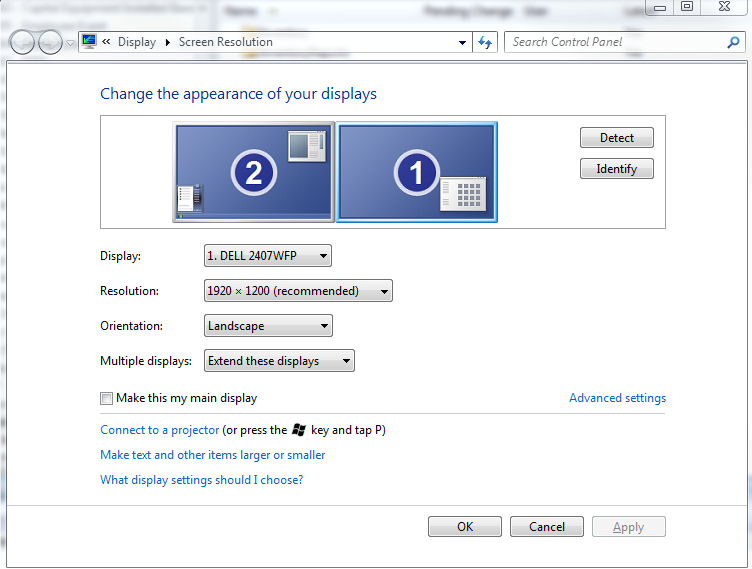
Visual Studio 2008 / Windows 7 / Nvidia display problems

Problem
Recently I have been working on a notebook with NVidia Quadro FX 1700M. Windows 7 enterprise 32-bit SP1, with Visual Studio 2005 and 2008. 2 1920x1200 LCD monitors. The Visual Studio 2008 environment gave problems: I could not select certain vertical scrollbars or open dropdwon boxes , particularly in the Source Control Explorer window for TFS. Which made it impossible for me to recent versions of projects from the source control system. I noticed that the vertical scrollbar in the source control explorer window could be manipulated when I moved the cursor approx 2 cm to the right of the scrollbar. when I hovered 2 cm to the right the scrollbar changed color and by clicking I could then moved it up or down. But I could not click the button bar on top of the window, almost as if it all buttons were disabled.
On this computer I als used SQL Server Management studio. In this window I noticed that when dragging the right hand edge of the Object explorer window, a ghost edge was displayd 2 cm to the left of my cursor, althought I could click and drag on the exact edge position.
Diagnose
These 2 phenomena made it look like a display driver problem. Since the Nvidia drivers were the certified Windows drivers I was reluctant to update them by downloading newer drivers from the Nvidia site. By comparing with the screens from a collegue with similar hardware, I noticed my Icons and windows were taller than his.
Solution
  • In Windows 7 rightclick on the desktop and select 'screen resolution'

  • Click on 'make text and other items larger or smaller
  • The setting was 125% - Select 'Smaller 100%' (then it dos not scale)
  • click on apply
  • Log out and login - Problem is solved !

Saturday, May 07, 2011

Creation of the virtual directory failed

On attempting to open project in VS2008/2010, I got the following message:
The local IIS URL http://localhost/MyApp specified for Web project DemoWebsite has not been configured. In order to open this project the virtual directory needs to be configured. Would you like to create the virtual directory now?

On clicking yes, I got the following error:

Creation of the virtual directory http://localhost/MyApp failed with the error: The URL 'http://localhost/' is already mapped to a different folder location.

The rest of the solution opened all right, but the above project did not; it was marked as unavailable.

Solution (I am working on a Vista machine):
Close VS.
Start IIS management
look in the in the localhost website and delete MyApp (your visual studio wil recreate it for you anyway).
Open the solution with VS2008/2010 and answer yes when asked to create the virtual directory.

Another solution to this problem I found on Neil Pullinger's blog
Creation of the virtual directory failed

But the Solution is for the main localhost site http://localhost, not for http://localhost/MyApp.
Here is the tekst of his solution:

... I right-clicked the project node in the solution explorer and selected the option to edit the project (.csproj) file. Near the bottom of the file, I found the following:

http://localhost/

I edited this entry to add a virtual directory:

http://localhost/myapp

Having saved the change, I then right-clicked the project node in the solution explorer again and reloaded the project. When I was prompted to create the virtual directory again, the creation was successful and the project checked out. The virtual directory is created under the running web site in IIS (on Windows XP).